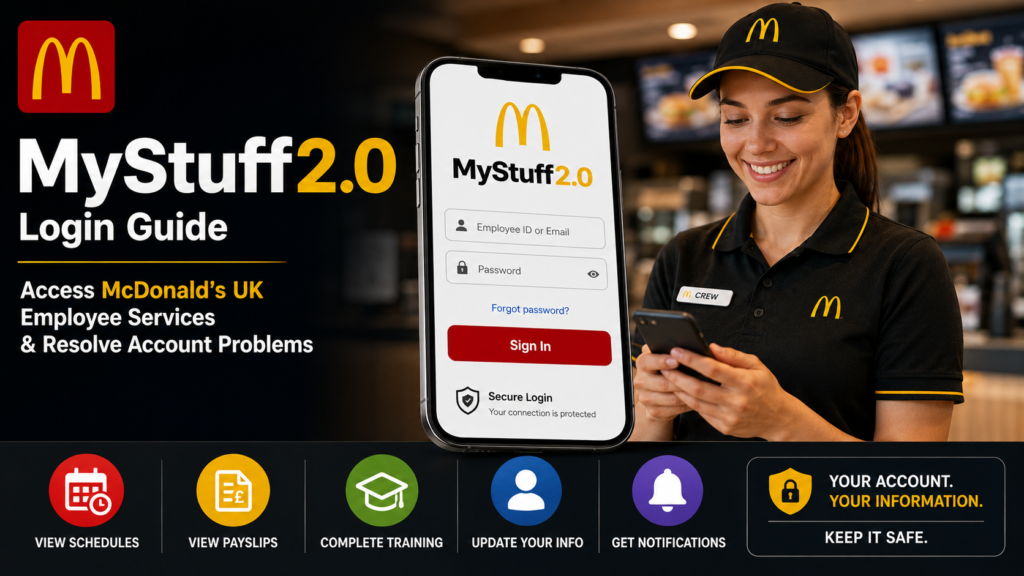
MyStuff2.0 is the digital human resources platform created for McDonald’s UK employees and participating franchise organizations. The system brings employment information, workplace processes and connected people-management services into one mobile-friendly environment. Employees may use it to complete assigned HR tasks, access approved workplace resources and move between connected systems with a single account.
McDonald’s UK selected HR technology provider elementsuite to develop MyStuff2.0 as a replacement for its older employee-management system. The platform was designed to reduce paper-based administration, support employee self-service and accommodate the different operating requirements of McDonald’s franchisees. It also connects with third-party workforce-management systems and produces payroll data for participating organizations.
Because MyStuff2.0 contains private employment information, users should access it only through links supplied by McDonald’s, their employing franchise or restaurant management. Login methods and available functions can differ according to role, employment status and franchise configuration. Public information explains the platform’s overall purpose, but an employee’s own dashboard remains the most reliable source for the services assigned to that account.
Open the Authorized MyStuff2.0 Portal
Start by using the MyStuff2.0 address provided in an official onboarding email, employee document or communication from restaurant management. Employees should avoid entering their credentials through unfamiliar websites that imitate McDonald’s branding or promise unofficial access to schedules, payslips or staff benefits.
A legitimate employee portal should use a secure connection and lead to a recognized McDonald’s or approved HR system. Check the address carefully before entering an employee identifier, email address or password. Misspelled domains, unnecessary downloads and requests for banking details are warning signs that a page may not be genuine.
MyStuff2.0 is intended for authorized workplace use rather than general public registration. McDonald’s account terms state that protected areas may contain confidential information intended for employees, licensees and authorized agents. Users must handle information accessed through those areas in accordance with company requirements.
Employees who do not have an official link should request one from their restaurant manager or approved support team. A search-engine result may help locate a service, but it should not replace the login instructions issued by the employer.
| Access requirement | Recommended action |
|---|---|
| Official portal address | Use the link supplied during onboarding |
| Secure connection | Confirm that the page uses HTTPS |
| Employee credentials | Use only the account assigned to you |
| Shared computer | Sign out completely after each session |
| Unfamiliar page | Close it and verify the address |
| Access uncertainty | Contact restaurant management |
Use the Account Assigned to Your Employment Record
Enter the employee identity connected to your McDonald’s employment profile. Depending on the organization and role, this may involve a McDonald’s employee identifier, an approved email address or another account created during onboarding.
Do not create multiple accounts unless an authorized manager or support representative specifically instructs you to do so. A second account may not connect to the correct employment record, which can result in missing services, incomplete onboarding information or an empty dashboard.
MyStuff2.0 was designed to simplify access across people-management systems. The elementsuite case study reports that employees could use one username and password for connected people systems, reducing the need to maintain separate credentials for every workplace service.
The exact sign-in experience may vary between company-operated restaurants, franchise organizations and corporate teams. A crew member may not use the same route or see the same options as a business manager, franchisee or office employee. Restaurant management should confirm which identity and portal apply to each user.
Complete the Initial Account Activation
Follow the activation instructions provided after joining McDonald’s. A new employee may receive a message asking them to verify their identity, establish account-recovery details or complete required onboarding actions.
Read the entire message before selecting any link. Confirm that the sender and destination match the information supplied by the restaurant. When a message looks suspicious, open the known employee portal separately or ask management to confirm whether the communication is genuine.
Some users may need to create a password or connect an existing McDonald’s account to the new HR profile. Others may receive credentials through their employer. The process depends on the account configuration selected by the employing organization.
Complete every mandatory step shown during activation. An account may permit basic access while withholding additional tools until required employment forms, acknowledgements or orientation activities have been completed.
Avoid repeatedly restarting registration when the profile appears incomplete. Multiple activation attempts can complicate account matching. Record the error and ask the manager to verify that the employee record has been created correctly.
Allow the Employee Profile to Update
Give the system time to recognize a newly activated or recently changed employment record. Access may not become complete at the exact moment an employee accepts a job offer or attends an initial orientation.
Employee information often moves through several connected processes. Recruitment records may need to transfer into HR, payroll, training and workforce-management systems. The user may therefore reach MyStuff2.0 before every assigned service is available.
A successful login with limited dashboard content can indicate that authentication is working while permissions or employment data are still updating. This differs from a complete login failure, where the system cannot verify the account.
Confirm that the employee’s name, restaurant, start date and role have been entered correctly. A mistake in the underlying record can prevent the appropriate dashboard configuration from appearing.
When access remains limited after employment has started, ask restaurant management to check the profile status. Front-line technical troubleshooting cannot correct an inactive or incorrectly assigned employment record.
Navigate the MyStuff2.0 Dashboard
Use the dashboard to open the applications, forms and resources assigned to your account. MyStuff2.0 was developed as a centralized platform that could place employment information and connected HR processes in one location.
The visible options are determined by permissions. Crew members, trainers, managers and franchise administrators may receive different menus because their responsibilities and access requirements are not the same.
The platform was created to support employee self-service, real-time alerts, dashboards and workplace analytics. It was also designed to integrate with other systems rather than replace every operational application with a single identical interface.
A dashboard tile may therefore open another approved service for scheduling, learning or another employment function. Users should expect connected systems to have slightly different layouts or session requirements.
Open only the information needed for legitimate work purposes. Payroll records, personal information and internal documents should not be displayed where unauthorized people can see them.
Access Assigned Workforce-Management Services
Select the workforce-management option available through the employee dashboard when you need to review operational information. MyStuff2.0 was built to integrate with third-party workforce-management technology, allowing franchise organizations to connect their existing tools with the central HR platform.
This flexible design means scheduling functions may not look identical for every McDonald’s employee. Different franchisees can use different processes, systems or approval rules while still relying on MyStuff2.0 for employee identity and HR data.
Check all visible details carefully when reviewing a shift or work-related record. Confirm the date, location and time, and follow the restaurant’s procedure when information appears incorrect.
Do not assume that submitting an availability change, holiday request or shift-related action means it has been approved. An online submission normally enters a management process and may require confirmation.
When a connected service fails, identify whether the problem occurs before or after leaving the MyStuff2.0 dashboard. This detail helps support teams determine whether the issue involves the employee account or the separate application.
Review Payroll-Related Information Carefully
Use only the payroll or employment-pay service assigned through the authorized account. Elementsuite reports that the MyStuff2.0 implementation was designed to provide payroll outputs for McDonald’s franchise organizations, helping reduce manual processing and errors.
The format and availability of payroll information may vary because individual franchisees can have their own payroll arrangements. Public descriptions of the platform do not establish that every employee receives identical payslip features or payment tools.
When a payslip or payment record is available, review the employee name, pay period, hours, gross earnings and deductions. Compare the information with personal shift records and any approved absence or additional-payment arrangements.
Raise discrepancies promptly through the restaurant’s normal payroll channel. The portal displays information, but a manager, payroll administrator or franchise support team may need to investigate and correct the underlying record.
Do not send a complete payslip through an unverified email address or public messaging service. Payroll documents can contain personal, tax and financial information that may be misused if exposed.
Complete Orientation and Performance Tasks
Open assigned orientation, learning or performance items from the dashboard and complete them under your own account. MyStuff2.0 was specifically designed to support structured orientation training and automate processes that had previously depended on paper-based performance reviews.
The exact materials depend on the employee’s role and organization. A new crew member may receive different activities from an experienced manager or franchise administrator.
Read each instruction before starting a module or form. Some activities must be completed in one session, while others may allow users to save progress and continue later.
Confirm that the system records completion before closing the browser. A course or acknowledgment may not count as finished until the final submission or confirmation screen appears.
When a task freezes, record its title, the point where the problem occurred and the wording of any error. Do not share screenshots containing personal employee data unless an authorized support representative requests them through a secure channel.
Update Personal Information Through Approved Tools
Review personal details when the dashboard provides a profile-management option. Accurate information helps the employer maintain reliable contact, payroll and employment records.
McDonald’s Global Account Manager documentation explains that some account fields may be editable while others remain controlled by the organization. Its user guide states that personal details such as an address or phone number may be updated in eligible profiles, while certain McDonald’s-issued information remains read-only.
The settings available in Global Account Manager do not necessarily match every field inside MyStuff2.0. Employees should use the service indicated by their employer for each type of change.
A legal name, bank-account or tax-related amendment may require supporting evidence or management approval. Do not assume that editing one screen automatically updates every connected payroll and workforce system.
After submitting a change, verify that it has taken effect where relevant. Notify management when a time-sensitive correction does not appear before a payroll or employment deadline.
Reset a Forgotten Password Securely
Use the official password-recovery tool connected to your McDonald’s account. Do not pay a third party, install remote-access software or disclose the existing password to someone claiming they can restore access.
McDonald’s Global Account Manager documentation describes approved reset methods that can include a recovery email address, security questions or verification of account information. The available method depends on how the user’s account was configured.
Enter the exact identifier assigned to the account. A recovery request will fail when the employee uses an unrelated email address or an incorrectly typed employee ID.
Check the inbox and spam folder associated with the recovery profile. Use only the latest valid reset message, since earlier links may expire after another request is submitted.
Choose a unique password that is not used for personal banking, shopping or social-media accounts. Avoid predictable details such as a restaurant name, birth date, employee number or simple number sequence.
Support staff may verify identity, but they should not ask an employee to disclose a current password. Any request to reveal or forward a password should be treated as suspicious.
Resolve an Incorrect Username or Account Error
Recheck the sign-in identity when the portal reports that the user cannot be recognized. A valid password will not work when it is paired with the wrong email address, employee ID or account type.
Type the username manually rather than relying on browser autofill. Stored credentials may belong to a previous account or may contain an outdated password.
Remove accidental spaces before and after the username. Check the spelling carefully and confirm whether the portal expects an email address or another identifier.
Employees who have changed their personal email address should not assume the account username changed automatically. McDonald’s-issued identities and employment records may follow separate rules.
Restaurant management can confirm which account belongs to the employee. The manager should not need to know the password, but may be able to verify the employee ID, profile status or correct login route.
Fix a Repeated Authentication Failure
Begin with a fresh browser session when the portal repeatedly rejects credentials that appear correct. Sign out from other McDonald’s services, close the browser and reopen the authorized login page.
Check Caps Lock, keyboard language and stored-password settings. Mobile keyboards can add spaces or replace characters, while password managers may fill an older credential automatically.
Try a private or incognito browser window. This method avoids some stored cookies and sessions without deleting the user’s entire browser history.
Do not continue guessing passwords indefinitely. Repeated unsuccessful attempts may trigger an account lock or security restriction. Use the official recovery process after a small number of careful attempts.
McDonald’s publishes country-specific support guidance for account and password problems. Its support directory directs UK and Ireland restaurant users to approved service-desk channels and also notes that reporting managers may be able to reset passwords for direct reports in Ireland.
Follow the support route assigned by the employer because help-desk details and account procedures may change.
Restore Missing Dashboard Options
Sign out and return through the authorized portal when the account opens but expected options are missing. A temporary session problem may prevent the dashboard from loading fully.
Test the account on another supported browser or device. If the missing item appears elsewhere, the first browser may have outdated cookies, blocked scripts or an incompatible extension.
Confirm that the employee’s role and restaurant assignment are correct. Dashboard access is based on permissions, so an inaccurate role can result in the wrong set of tools.
Complete any outstanding onboarding requirements. An incomplete form or employment status may delay access to later tasks.
Ask management to verify whether the required service should be available to the employee. Not every dashboard option belongs to every role, and a feature mentioned in a third-party guide may not be part of the user’s franchise configuration.
Avoid attempting to bypass missing permissions. Access controls protect employee and company information, and only authorized administrators should change them.
Clear Browser Cache and Cookie Problems
Update the browser to its current supported version. Modern employee portals depend on secure authentication, JavaScript and session technologies that may not work correctly in an outdated application.
Clear site-specific cookies and cached files when the login page loops, displays an old message or returns to the same screen after authentication.
Enable essential cookies for the authorized portal. Blocking every cookie may prevent the login system from preserving a valid session.
Temporarily disable browser extensions that interfere with scripts or redirects. Privacy tools and content blockers can occasionally stop a legitimate identity provider from completing authentication.
Restart the browser or device after making changes. A fresh session can remove temporary errors without altering the employment account.
Do not clear saved passwords unless you have confirmed that the correct credential can be recovered. Browser troubleshooting should not create a second access problem.
| Login problem | First action |
|---|---|
| Password rejected | Use the official reset process |
| Username not recognized | Confirm the assigned employee identity |
| Login page loops | Clear site cookies or use private browsing |
| Dashboard is incomplete | Verify role and profile activation |
| One tile fails | Identify the connected application |
| Recovery email does not arrive | Check the registered recovery method |
| Account becomes locked | Contact authorized support |
Test the Portal on Another Device or Network
Use a second trusted device when the portal works inconsistently. A successful login elsewhere indicates that the account may be valid and the original device requires troubleshooting.
Switch between a trusted Wi-Fi network and mobile data to test connectivity. Workplace, school and public networks may restrict authentication pages or connected applications.
Avoid entering credentials on a public computer. When no alternative is available, do not save the password and sign out from every connected service afterward.
A public Wi-Fi network can expose users to additional privacy risks. Employees should avoid reviewing sensitive payroll or personal records when the network cannot be trusted.
Make one change at a time while troubleshooting. Changing the password, browser, device and account details simultaneously makes it difficult to identify the real cause.
When the problem affects multiple employees at the same location, report a possible system or network issue rather than asking every user to reset their account.
Protect the MyStuff2.0 Account from Phishing
Treat unexpected login links with caution. A phishing message may copy McDonald’s branding and create urgency by claiming that an account, payslip or work schedule will be removed.
Open the known employee portal independently instead of following a suspicious link. Check whether the same alert appears after signing in normally.
Never provide a one-time security code to another person. Authentication codes are designed to prove account ownership and can give an attacker access when shared.
Reject unexpected login approval requests. A notification received when the employee is not signing in may indicate that another person has obtained the password.
Use a different password for MyStuff2.0 and personal websites. Password reuse allows a breach at an unrelated service to compromise the employment account.
Report suspicious messages through the employer’s approved security or support process. Do not forward sensitive content to colleagues through open group chats.
Sign Out Safely from Shared Devices
Use the portal’s sign-out command rather than simply closing the browser tab. Single sign-on may keep a user authenticated across several connected employee services.
Close all remaining McDonald’s or HR application tabs after signing out. A separate service may maintain its own active session.
Remove downloaded payroll documents, forms or screenshots from the device. Check the downloads folder and recycle bin where appropriate.
Do not allow the browser to save the password on a shared restaurant or household computer. Saved credentials can expose private employment information to another user.
Lock personal phones and tablets with a secure PIN, password or biometric control. A logged-in mobile browser can provide direct access to workplace data when the device is lost.
Change the password and notify authorized support if an account was left active on a device that is no longer available.
Contact the Correct Support Team
Ask restaurant management for help when the issue involves employment status, role assignment, onboarding or missing permissions. These matters usually require access to internal records rather than general password troubleshooting.
Use McDonald’s approved account-recovery system for a forgotten password or locked identity. Global Account Manager documentation supports self-service recovery where the required account information has been configured.
McDonald’s country-support information lists dedicated service channels for UK and Ireland users, including routes for restaurant and office support. Employees should confirm the current contact details through their manager or official account page before sending personal information.
Describe the issue precisely. Include the error message, the approximate time, the device and browser used, and whether another authorized service works.
Never include the password in a support request. Share screenshots only after removing personal, payroll and account-recovery information.
Franchise employees should follow their organization’s own escalation process. A franchise may manage HR and payroll support separately from McDonald’s corporate teams.
Separate Confirmed Features from Unverified Claims
Rely on documented platform capabilities rather than copying broad feature lists from unofficial websites. The most authoritative public description comes from elementsuite, the provider selected to deliver the MyStuff2.0 platform for McDonald’s UK.
That case study confirms a mobile-first HR system, employee self-service, integration with workforce management, payroll outputs, automated performance reviews and structured orientation training. It does not establish that every employee can access every possible schedule, benefit, holiday or payroll function from the same dashboard.
Feature availability can depend on the franchise, role and connected systems. An option offered in one restaurant organization may not appear in another.
Avoid stating that MyStuff2.0 provides a particular benefit, payment service or personal record unless it is visible in the authorized account or confirmed by the employer.
This distinction improves accuracy and protects employees from entering information into unrelated tools that use a similar name.
Review MyStuff2.0’s Documented Usage Results
Consider the platform’s reported adoption when evaluating its role in McDonald’s UK employment systems. Elementsuite states that MyStuff2.0 achieved more than 30,000 unique logins on peak days after implementation.
The provider also reported that 90% of surveyed employees rated the user experience as good or better. According to the case study, all areas of the system were designed to be accessible from mobile devices.
These figures come from the technology provider’s client case study rather than an independent audit. They are useful evidence of reported adoption and user experience, but they should be understood in that context.
The case study also associates the implementation with reduced support calls, improved payroll-file delivery, lower service costs and better handling of sickness processes. It does not provide complete financial data that would allow readers to independently calculate each claimed benefit.
The documented results nevertheless help explain why MyStuff2.0 became an important access point within McDonald’s UK people-management environment.
Use MyStuff2.0 More Efficiently
Bookmark the authorized portal after confirming it through an official source. This practice reduces the risk of typing the wrong address or opening an imitation page.
Maintain access to the recovery email or security method connected to the employee account. Update recovery information through approved account-management tools when necessary.
Check the dashboard regularly for assigned forms, orientation tasks or workplace notices. Some actions may have deadlines that affect payroll, training or employment administration.
Keep personal copies of documents where company policy permits. Store them securely and do not leave sensitive files on shared devices.
Review changes before submitting them. Incorrect personal or employment information may move into connected systems and require management intervention to correct.
Report access problems early, especially when they prevent completion of a required task. A clear report gives the manager or support team more time to investigate before a deadline.
Follow a Reliable MyStuff2.0 Login Routine
Open the authorized link supplied by McDonald’s or the employing franchise. Verify the secure connection and page address before entering credentials.
Use the employee identity assigned to the employment record. Avoid relying on old browser autofill information.
Complete any authentication step and review the dashboard for the required service. Open connected applications only through approved links.
When an error occurs, record the exact message before changing the account. Try a fresh browser session, then use official recovery or support if necessary.
Protect personal information while using the platform. Sign out from every connected application when the task is complete.
This routine reduces common login problems and helps prevent credentials from being exposed to unofficial websites.
Conclusion
MyStuff2.0 is McDonald’s UK digital HR platform for authorized employees and participating franchise organizations. It was developed with elementsuite to support mobile access, employee self-service, workforce-management integration, payroll outputs, orientation and performance processes.
Employees should use only login links and credentials supplied through official workplace channels. The exact dashboard and available services can vary according to role, employment status and franchise configuration, so public guides should not be treated as a complete description of every account.
Most login problems can be narrowed down by confirming the username, using official password recovery, clearing an expired browser session and verifying the employee profile with restaurant management. Sensitive information should never be entered on an unverified page or shared with someone claiming to provide unofficial support.
The safest source of account-specific guidance remains the employee’s manager, employing franchise or authorized McDonald’s support service.
Frequently Asked Questions
How do I access MyStuff2.0?
Use the portal link provided in your official McDonald’s onboarding information or by restaurant management. Confirm the address before entering employee credentials.
Is MyStuff2.0 an official McDonald’s system?
Yes. Elementsuite identifies MyStuff2.0 as the digital HR platform it developed for McDonald’s UK. The platform was designed to support mobile employee self-service and connected people-management processes.
Why is my MyStuff2.0 dashboard empty?
The account may still be activating, the employment record may be incomplete or the user may not have the required permissions. Sign in through a fresh browser session and ask restaurant management to verify the employee profile when the issue continues.
How do I reset my MyStuff2.0 password?
Use the approved recovery option connected to the McDonald’s account. Available verification methods may include a recovery email, security questions or account information.
Can I access MyStuff2.0 from a mobile phone?
The platform was designed to be mobile friendly, and elementsuite reports that its system areas were accessible through mobile devices. Actual access remains subject to account permissions and the employer’s configuration.
Who should I contact when MyStuff2.0 does not work?
Contact restaurant management for employment-profile and permission problems. Use an authorized McDonald’s or franchise support channel for password, authentication or technical issues. McDonald’s maintains country-specific support guidance for UK and Ireland users.
This guide provides general information about MyStuff2.0. Employees should follow the current instructions issued by McDonald’s, their employing franchise and authorized support teams.